How to Install IPTV on Firestick: Beginner-Friendly Setup Guide
If you’ve recently purchased an Amazon Firestick and want to start watching IPTV, you’re in the right place. This guide will walk you through the installation process and help you get started quickly.
What You’ll Need
Before beginning, make sure you have:
- An Amazon Firestick device
- A stable internet connection
- An IPTV subscription
- IPTV login credentials or playlist URL
- An IPTV player application
Step 1: Prepare Your Firestick
Turn on your Firestick and connect it to your Wi-Fi network.
Ensure that your Fire OS software is updated to the latest version for optimal performance.
Step 2: Install an IPTV Player
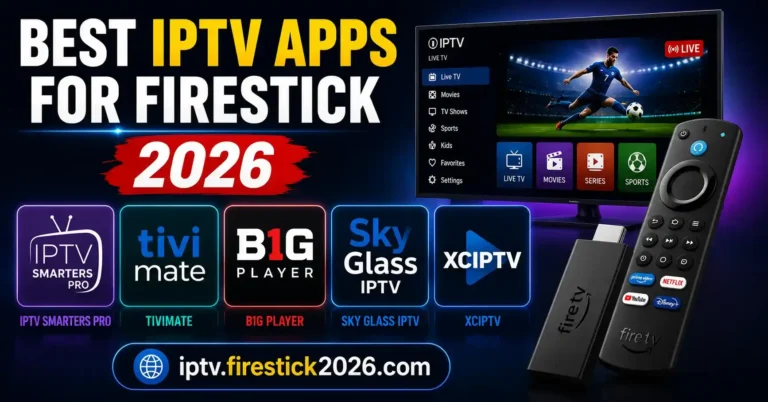
There are several IPTV players available for Firestick users. Popular options include:
- IPTV Smarters
- TiviMate
- XCIPTV
- Sparkle TV
- Perfect Player
Choose the player that best matches your preferences and IPTV provider requirements.
Step 3: Enter Your IPTV Credentials
Once the IPTV player is installed:
- Open the application.
- Select your preferred login method.
- Enter your IPTV details.
Most providers offer one of the following:
M3U Playlist URL
A direct link containing your channel list.
Xtream Codes API
Typically includes:
- Username
- Password
- Server URL
After entering the information, the app will begin loading channels and content.
Step 4: Configure the EPG
An Electronic Program Guide (EPG) provides channel schedules and program information.
Most IPTV providers include an EPG URL that can be added within your IPTV player’s settings menu.
Step 5: Optimize Streaming Performance
To improve streaming quality:
Use Fast Internet
A reliable connection is essential for smooth playback.
Restart Devices Occasionally
Restarting your router and Firestick can help maintain performance.
Keep Apps Updated
Updated applications often contain bug fixes and performance improvements.
Manage Storage
Delete unused apps and files to keep your Firestick running efficiently.
Common IPTV Issues and Solutions
Buffering
- Check internet speed.
- Switch to 5GHz Wi-Fi.
- Restart your router.
Channels Not Loading
- Verify your IPTV subscription is active.
- Re-enter your login credentials.
- Refresh playlists within the application.
EPG Not Working
- Confirm the EPG URL is correct.
- Refresh guide data.
- Restart the IPTV application.
Frequently Asked Questions
Is IPTV Compatible With All Firestick Models?
Yes. Most IPTV players support Fire TV Stick Lite, Fire TV Stick 4K, Fire TV Stick 4K Max, and Fire TV Cube devices.
Do I Need Technical Knowledge?
No. Most IPTV applications provide simple setup processes that can be completed in minutes.
Can I Use IPTV on Multiple Devices?
Many IPTV providers support multiple devices, depending on your subscription plan.
Conclusion
Installing IPTV on Firestick is straightforward and can usually be completed in less than 10 minutes. With the right IPTV service and a reliable internet connection, you can enjoy live television, sports, movies, and entertainment from a single device.
Follow the steps in this guide, optimize your settings, and you’ll be ready to enjoy a smooth IPTV streaming experience on your Firestick.